 ClickDragSnap
How to build 3D brick sets on your phone
ClickDragSnap is like opening a box set, without the box. You build a 3D brick model step by step, bag by bag, by dragging each piece onto the model until it snaps into place. It is free and runs in your phone’s browser, so there is nothing to install and no account to make.
1. Pick a set
Start from the sets to build, from a 78-piece potted cactus that takes a coffee break to a 2,080-piece pagoda garden that takes a few evenings. Each one shows its pieces, bags and steps before you start.
2. Open a bag
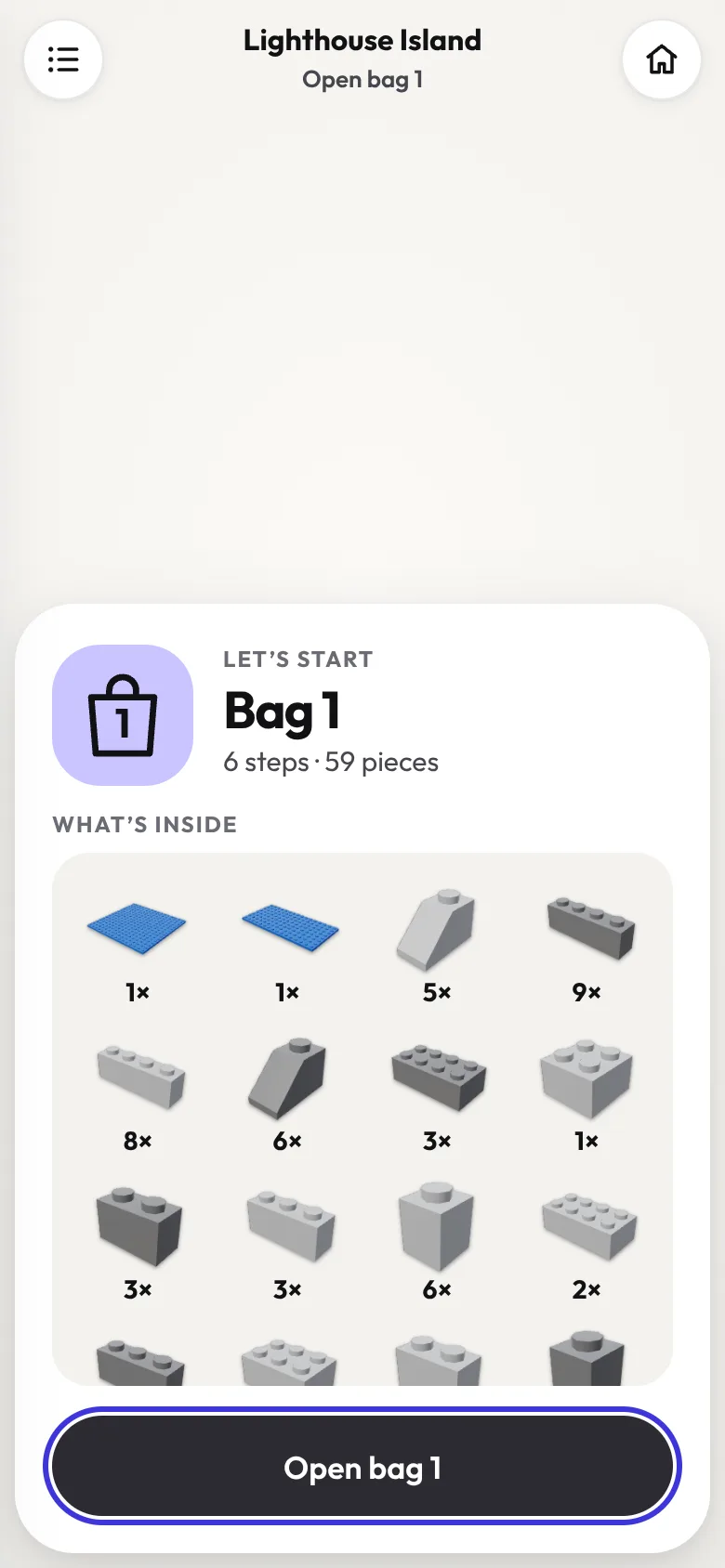
Like a real set, the pieces come in numbered bags. Each bag starts with a card showing everything inside it, so you know what you are about to build with.
3. Find the pieces and snap them in
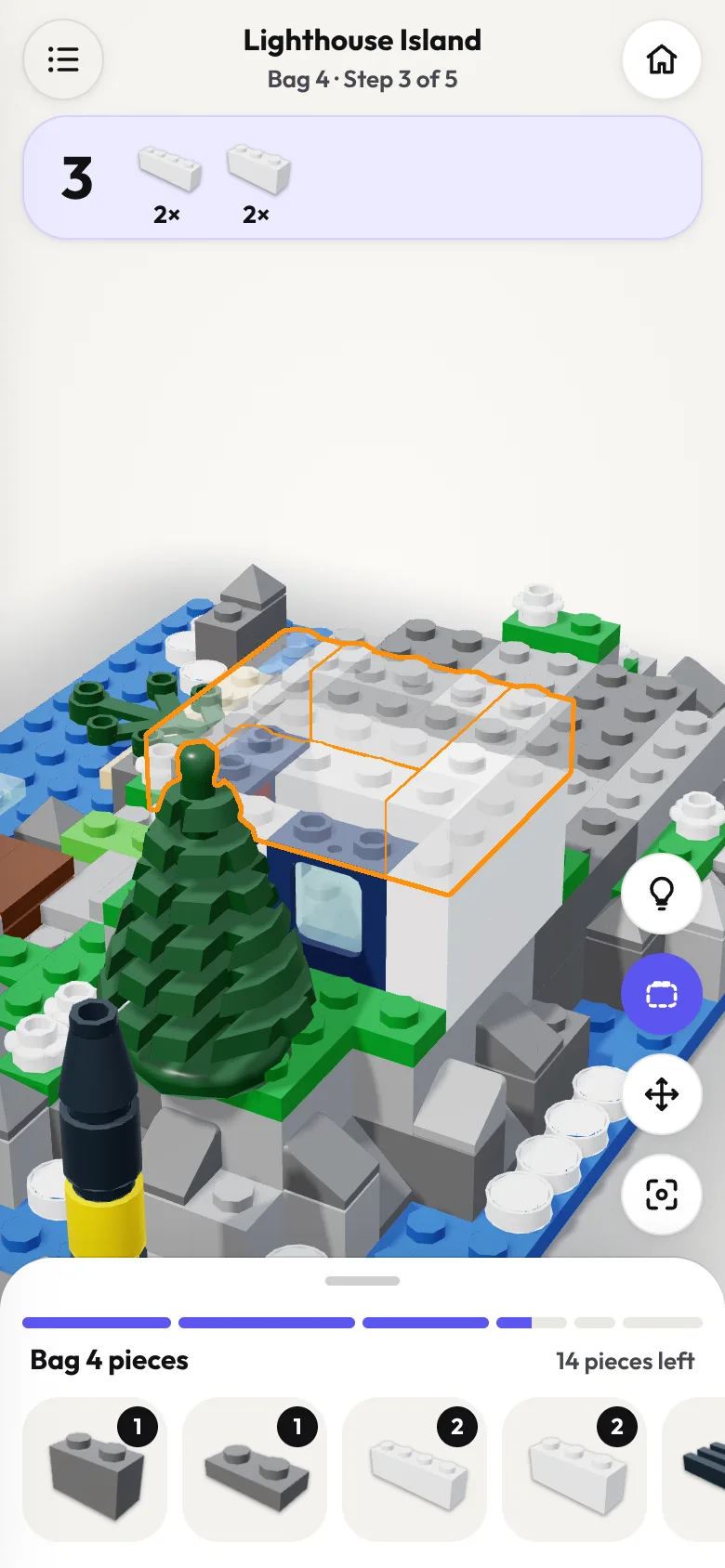
The parts tray at the bottom holds every piece left in the bag, like a pile on the table. The card at the top shows which pieces this step needs and how many. Pull the tray’s tab up to see the whole bag at once.
Drag a piece out of the tray onto the model. A glowing, see-through “ghost” shows where it goes. Bring the piece close and it snaps into place with a click. When a step is done, the next one starts; when a bag is empty, the next bag opens.
Stuck? Ways to get help
- Hint (the light bulb) makes the pieces you need glow in the tray.
- Tap instead of drag: tap a piece, then tap its glowing spot. Place it for me puts it in for you, and counts as a hint.
- Turn the model by dragging it, pinch to zoom, and use two fingers to move it. Double-tap to reset the view.
- Wrong piece? If it belongs to a later step, the app tells you and it goes back to the tray.
- Want a challenge? Turn the glowing spots off. They briefly come back if you miss.
Stop any time and carry on later
Your place is saved on your phone as you build, and the home screen shows how far you got. Browsers can clear saved data (Safari does after 7 days without a visit), so note down your step: you can jump straight back to it from the step list. Download backup on the home screen saves your progress to a file too.
When you finish, you see your time and how many hints you used.
Keep it on your home screen
Add ClickDragSnap to your home screen and it opens like an app. In Safari, tap Share, then Add to Home Screen. In Chrome on Android, open the menu and tap Add to Home screen.
Then make your own
Once you have built a few, try designing a set of your own, or remix one of these. See how to design your own brick set.