 ClickDragSnap
How to design your own brick set
Create is ClickDragSnap’s brick editor. You build a model from real brick shapes, sort it into bags and steps like a boxed set, and share it so anyone can build it. It is free, runs in your browser on a phone, tablet or computer, and needs no account.
1. Start a creation
On the home screen, pick Create a set, then New creation for an empty grid. Or start from one of the example sets: pick it and choose Use as template to remix a copy. Your creation saves itself in your browser from the first piece on.
2. Add bricks
The parts tray has 1,225 plain building parts in 58 colours, in categories such as bricks, plates, slopes, tiles, hinges and Technic beams. Search by size (2x4), name (slope) or part number (3001). Drag a part onto the grid, or tap it and then tap where it goes.
Pieces snap to the studs and rest on whatever is underneath, like real bricks. Aim at the side of a brick to put the new one next to it.
3. Connect more than studs
Hinges, clips, bars, pins and axles fit together the way real ones do. Drag a part close to one it fits and it snaps on and turns to line up: a clip onto a bar, a pin into a hole, an axle through a gear, a wheel onto its holder, glass into a window frame. Studs on the sides of bricks work too, so you can build sideways.
4. Turn, move and colour
Tap a piece to select it. The first button in the action bar switches between Grab (drag pieces), Rotate (rings that turn the piece in 15° steps) and Move (arrows that slide it a stud at a time). You can also change its colour, copy it or delete it. To change several pieces at once, drag a box across them with Select an area. Undo and redo cover everything.
5. Sort it into bags and steps
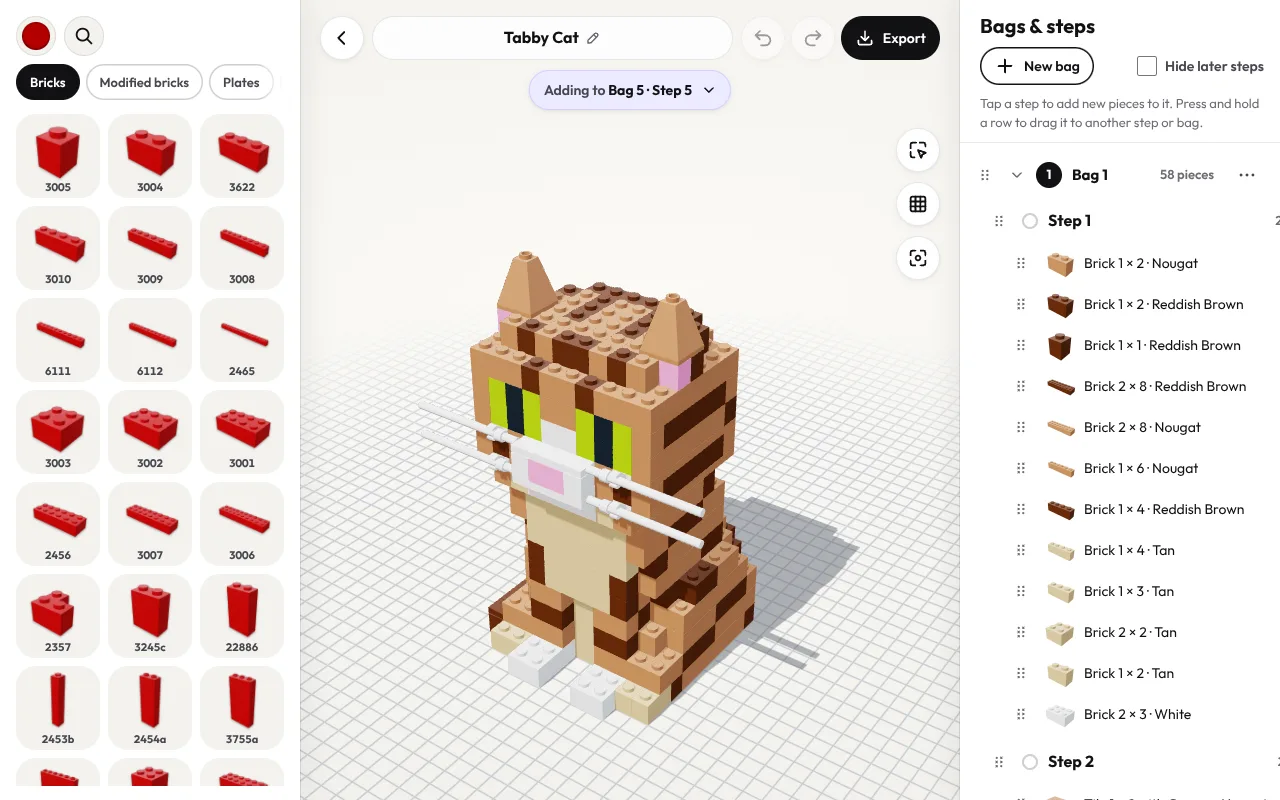
The chip at the top shows where new pieces go, for example Adding to Bag 1 · Step 3. If you build in order, the steps take care of themselves. Open Bags & steps to reorder: press and hold a row (or drag it with a mouse) to move pieces to another step, or whole steps and bags.
6. Try building it
The ▶ button opens your set in the build game straight away, so you can check the steps make sense. Back to editing returns to Create.
7. Share it
Export downloads your set as a .glb file and, if you like, a square picture for posts. Anyone can open the file in ClickDragSnap to build it, or in Create to remix it. To share it with the community, upload the file to Sketchfab with downloads turned on, and post the link on r/ClickDragSnap.
On a computer: keyboard shortcuts
Ctrl/⌘+Zto undo, addShiftto redo←and→move the selection sideways;↑and↓raise and lower it one plateR,MandVpick the rotate, move and grab tools;Shift+Rturns the selection 90°Dcopies the selection andDeleteremoves it
New to building?
Building a few sets first is a good way to learn how pieces fit. See how to build brick sets on your phone.